Understanding the DOM in JavaScript: A Complete Beginner's Guide
Understanding the DOM in JavaScript: A Complete Beginner's Guide
One of the biggest milestones in learning JavaScript is understanding the Document Object Model (DOM). The DOM is what allows JavaScript to interact with HTML and CSS, making websites dynamic and interactive.
Without the DOM, JavaScript would simply perform calculations and store data. With the DOM, it can update text, change styles, create new elements, respond to user actions, and much more.
In this beginner-friendly guide, you'll learn what the DOM is, how it works, and how to use it to build interactive web pages.
What Is the DOM?
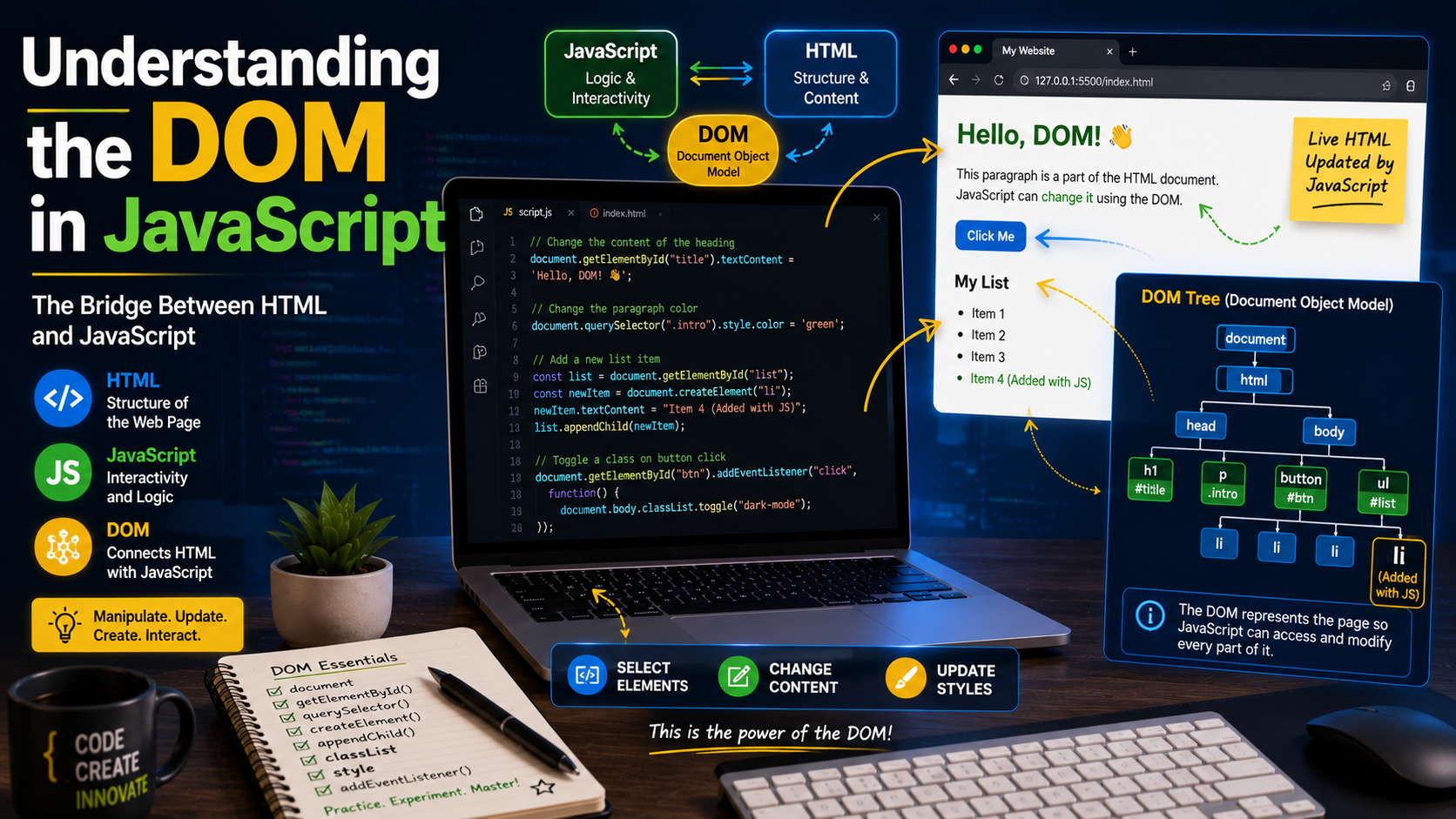
The Document Object Model (DOM) is a programming interface created by the browser whenever a web page loads.
It represents an HTML document as a tree of objects, allowing JavaScript to:
- Find HTML elements.
- Change content.
- Modify styles.
- Create new elements.
- Remove existing elements.
- Respond to user interactions.
Think of the DOM as a bridge between your HTML page and your JavaScript code.
How the DOM Works
Consider this simple HTML page:
<!DOCTYPE html>
<html>
<head>
<title>DOM Example</title>
</head>
<body>
<h1>Welcome</h1>
<p>This is my first webpage.</p>
</body>
</html>
The browser converts it into a tree structure like this:
Document
│
└── html
├── head
│ └── title
│
└── body
├── h1
└── p
Each item in this tree is called a node.
Why Is the DOM Important?
The DOM allows JavaScript to change a webpage after it has loaded.
Examples include:
- Updating text without refreshing the page.
- Showing or hiding menus.
- Creating image sliders.
- Validating forms.
- Displaying notifications.
- Loading new content dynamically.
- Modern websites rely heavily on DOM manipulation.
- Selecting Elements
Before JavaScript can modify an element, it must first find it.
Selecting by ID
HTML:
<h1 id="title">Welcome</h1>
JavaScript:
let heading = document.getElementById("title");
Selecting by Class
HTML:
<p class="message">Hello World</p>
JavaScript:
let messages = document.getElementsByClassName("message");
Selecting by Tag Name
let paragraphs = document.getElementsByTagName("p");
Using querySelector()
let heading = document.querySelector("#title");
This method selects the first matching element.
Using querySelectorAll()
let paragraphs = document.querySelectorAll("p");
This returns all matching elements.
Changing HTML Content
HTML:
<p id="demo">Original Text</p>
JavaScript:
document.getElementById("demo").textContent = "Welcome to JavaScript!";
The paragraph updates immediately without reloading the page.
Changing HTML
You can also replace HTML content.
document.getElementById("demo").innerHTML =
"<strong>Bold Text</strong>";
Use innerHTML carefully, especially with user-generated content, to avoid introducing security risks.
Changing CSS Styles
HTML:
<h1 id="title">Hello World</h1>
JavaScript:
document.getElementById("title").style.color = "blue";
document.getElementById("title").style.fontSize = "40px";
JavaScript can modify nearly every CSS property.
Changing Attributes
HTML:
<img id="photo" src="old.jpg">
JavaScript:
document.getElementById("photo")
.setAttribute("src","new.jpg");
This changes the displayed image.
Creating New Elements
JavaScript can generate HTML dynamically.
let paragraph = document.createElement("p");
paragraph.textContent = "New paragraph.";
document.body.appendChild(paragraph);
The new paragraph appears instantly.
Removing Elements
let element = document.getElementById("demo");
element.remove();
The selected element disappears from the page.
Responding to Events
Events occur when users interact with a webpage.
HTML:
<button id="btn">Click Me</button>
JavaScript:
document.getElementById("btn")
.addEventListener("click", function(){
alert("Button clicked!");
});
Common events include:
Click, submit, input, keydown, mouseover, mouseout, change
Traversing the DOM
JavaScript can move through related elements.
let element = document.getElementById("title");
element.parentElement;
element.children;
element.nextElementSibling;
element.previousElementSibling;
Traversal is useful for navigating complex page structures.
Practical Example: Dark Mode Button
HTML:
<button id="theme">Dark Mode</button>
JavaScript:
document.getElementById("theme")
.addEventListener("click", function(){
document.body.classList.toggle("dark");
});
CSS:
.dark{
background:#222;
color:white;
}
Clicking the button switches between light and dark themes.
Common Beginner Mistakes
Avoid these common errors:
- Selecting the wrong element.
- Running JavaScript before the page loads.
- Forgetting to check if an element exists.
- Overusing innerHTML.
- Writing inline event handlers instead of using addEventListener().
- Ignoring browser console errors.
Best Practices
Follow these recommendations:
- Use meaningful IDs and class names.
- Prefer querySelector() for flexible element selection.
- Use textContent when inserting plain text.
- Keep JavaScript separate from HTML whenever possible.
- Organize event listeners logically.
- Test your code in multiple browsers.
- Write clean, readable code.
Helpful Tools
These tools make DOM development easier:
- Visual Studio Code
- Chrome Developer Tools
- Firefox Developer Tools
- Live Server Extension
- Git and GitHub
Use the browser's Developer Tools to inspect the DOM, test JavaScript, and debug issues efficiently.
Frequently Asked Questions
Is the DOM part of JavaScript?
No. The DOM is provided by web browsers. JavaScript uses the DOM API to interact with HTML documents.
What is the difference between HTML and the DOM?
HTML is the source code of a webpage. The DOM is the browser's object representation of that HTML, allowing it to be manipulated with JavaScript.
Should I use getElementById() or querySelector() ?
Both are useful. getElementById() is ideal when selecting an element by its unique ID, while querySelector() provides more flexibility by supporting CSS selectors.
Conclusion
The Document Object Model is one of the most important concepts in JavaScript. It allows developers to create websites that respond to user actions, update content instantly, and provide engaging user experiences.
By mastering element selection, content updates, style changes, event handling, and DOM traversal, you'll be well prepared to build interactive web applications and move on to more advanced JavaScript concepts.
Practice regularly by creating small projects such as to-do lists, image galleries, calculators, and interactive forms. These projects will strengthen your understanding of the DOM and improve your overall development skills.